Field notes
I Bought a Brother Printer. Then I Had to Write the Mac Driver.
I Bought a Brother Printer. Then I Had to Write the Mac Driver.
the one where printing visa documents turns into an open-source project.
tl;dr: bought a Brother DCP-T236 for paperwork. Spilled ink setting it up. Spent two hours getting the first usable print. Discovered there was no Mac driver. Survived the Windows software. Eventually built a macOS print-and-scan bridge.
I was trying to visit Australia, not become a printer maintainer. 🥲
This was supposed to be a boring purchase
Back in 2025, I needed a printer for my Australian visa application. Print some documents. Scan some documents. Occasionally repeat because paperwork apparently reproduces when you leave it alone.
I already owned a Brother printer that had been working forever. Nothing exciting about it, which is exactly what I want from a printer. My impression of the brand was: reliable hardware, drivers available, plug it in and get on with your life.
So I opened Shopee and bought another Brother.
A DCP-T236. A little over 3M VND ($120 USD). An all-in-one ink-tank machine: print, scan, copy.
Seemed reasonable.
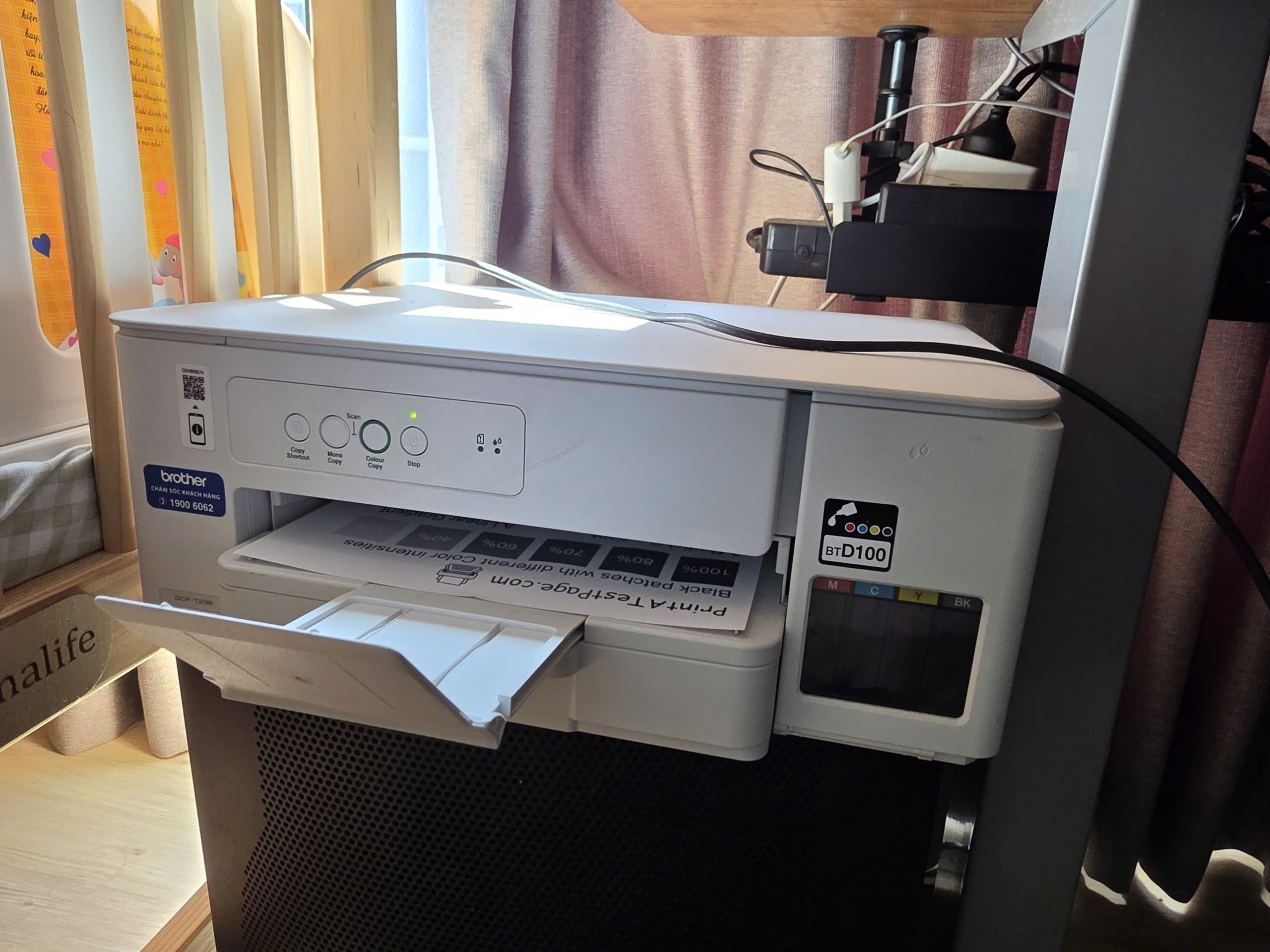
The suspect. Looks harmless, doesn't it?
First problem: where is the Mac driver?
There isn't one.
I went looking, assuming I had missed a download somewhere. Maybe a different regional support page. Maybe a package with a name that made no sense. Printer websites have trained me to expect a small archaeological expedition.
But the DCP-T236 download page offers Windows and Linux. No macOS option.
Yes, I should have checked before buying. I had carried the good experience with my old Brother straight into this purchase and assumed basic compatibility would still be there.
That assumption was doing a lot of work.
I wasn't asking to print from a phone while standing on another continent. I had a Mac, a USB cable, and a printer sitting next to it.
Apparently this was an ambitious setup.
Then came the ink
Before any of the software problems, there was the opening ceremony.
Installing and filling the ink system myself. Bottles. Caps. Trying to follow the instructions without turning the desk into a crime scene.
I spilled ink anyway.
Fine. My fault, perhaps. First-time ink-tank setup. Let's move on.
Except the printer wouldn't print colors properly.
Now I was searching for a calibration or ink-initialization procedure. I couldn't find instructions that solved the problem for this model, so I ended up finding a procedure for another Brother printer and doing something similar.
Two hours.
That is roughly how long it took me to get the first usable print out of this thing.
The first page felt less like using a new appliance and more like passing its entrance exam.
Windows was the workaround. Unfortunately.
Since the Mac route was going nowhere, I used Windows on my gaming PC, which I rarely touches (and Windows sucks too, updates after updates and after updates !!!!)
Brother iPrint&Scan became part of the workflow, and my experience with it was miserable. Slow to respond. Laggy enough that simple interactions became a little guessing game: did the click register, or should I wait longer?
For something I only wanted to use occasionally, that friction mattered. Every session began with remembering how to make the setup cooperate.
The software also kept suggesting printer firmware updates. I never managed to get that update workflow to do anything useful.
A firmware update might have fixed something. Who knows. The mechanism offering the improvement was itself another thing I couldn't get to work.
Eventually I could print and scan, but using Windows as the middleman every time I needed a document got old.
The printer was sitting right there. Connected by USB. Mechanically capable of doing the job.
I wanted to use it from the computer I actually worked on.
So, eventually, I built the missing bridge
With Codex helping on implementation and testing, I finally got the DCP-T236 printing and scanning from macOS.
The project is here:
agooddaytowork/brother-dcp-t236-macos
“Wrote a driver” makes this sound like one mysterious binary. The actual solution is two small services: one for printing, one for scanning. They translate between interfaces macOS already understands and the USB commands this printer expects.
There is no Linux VM running behind the scenes. No Windows machine forwarding jobs. The print helper runs natively on the Mac, and the scanner talks over USB through Python and libusb.
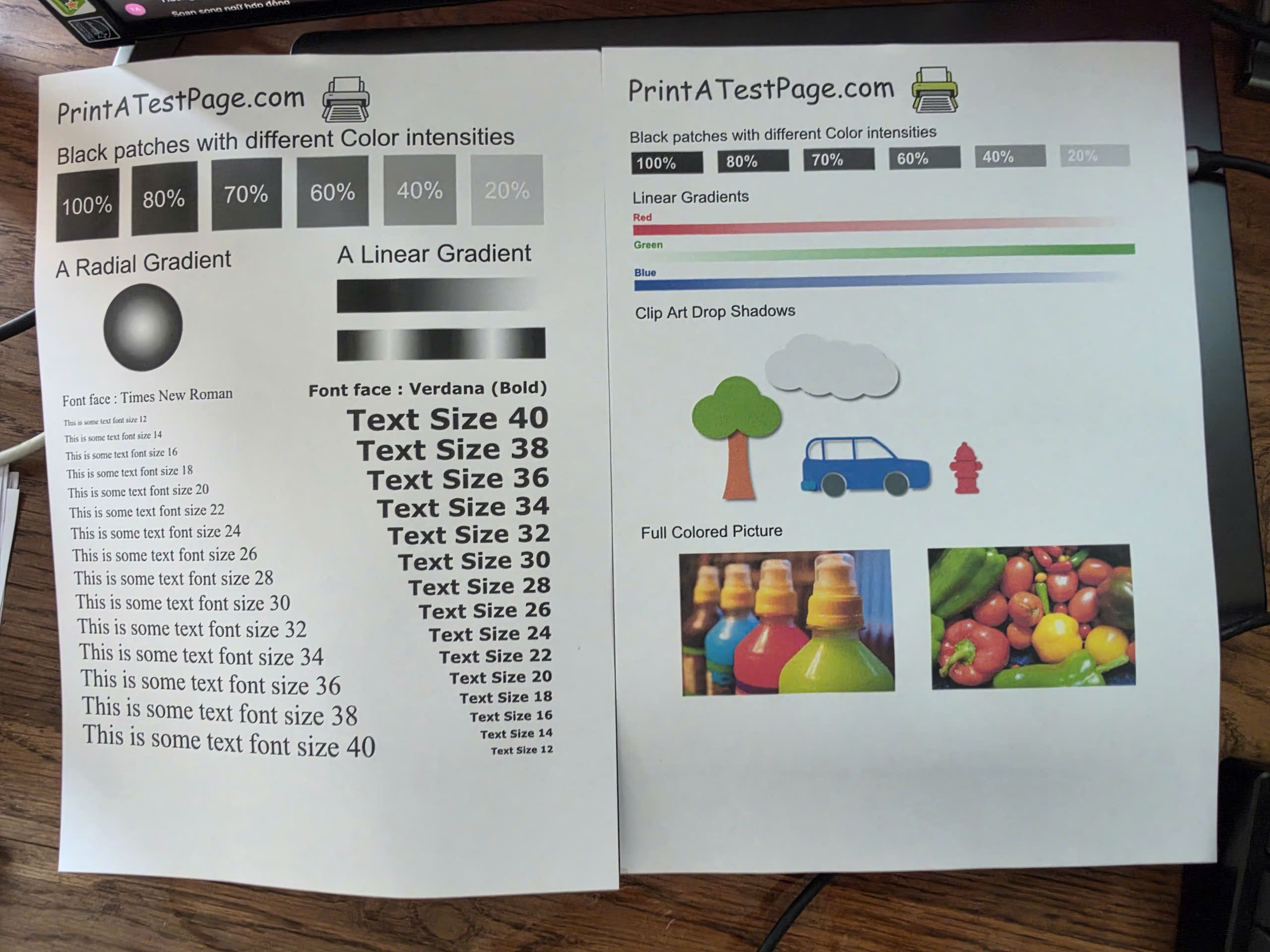
Test pages printed from the "mac driver" edition :D
Printing: get a normal Mac document into the printer's language
The printing path looks like this:
Word / Preview
    → macOS print queue
    → local IPP service
    → native PDF-to-raster helper
    → USB
    → DCP-T236
The local service gives macOS a printer it can submit jobs to. The native helper, written in C, uses Apple's CoreGraphics to render the PDF at 300 dpi, packages the pixels as PWG Raster with the necessary printer commands, and sends the result through Apple's USB printing backend.
That lets Word and Preview use their ordinary print dialogs.
Getting bytes onto paper was only the first milestone, though.
One test physically printed, while the Mac queue still insisted it was looking for the printer. Another made it through the queue but had the wrong scale and layout.
The scaling problem was particularly educational: PDF coordinates are measured in points, while the output bitmap is measured in pixels. At 300 dpi, those need an explicit conversion. Get that wrong and your perfectly normal document becomes a tiny document occupying a very expensive piece of A4 paper.
We corrected the rendering, checked the output, and printed the Word document again.
Then a full-color photo.
Both worked.
For a moment I was impressed that my printer could print. The bar had moved considerably.
Scanning: somebody else had already done the hard digging
The scanner work has an important upstream credit.
farafonoff's Brother DCP-T230 project already contained a Python implementation of Brother's USB scanning protocol, reconstructed from analysis of its Linux scanner software.
That was the starting point for the scanner module. I didn't independently reverse-engineer the whole thing.
For the T236, we adapted the USB product ID, device selection, and scan dimensions. One small but necessary fix was aligning the requested dimensions to the JPEG block boundaries; otherwise the scan could leave damaged rows at the end.
Getting a JPEG back over USB still wasn't the experience I wanted. I wanted to open the Mac's scanner app and press Scan.
So we added a local eSCL/AirScan bridge. It exposes the USB scanner through a protocol macOS already supports, then advertises it through Bonjour on the Mac's local-only interface.
Image Capture can discover it. You can also add it under Printers & Scanners.
The printer is still connected by USB. “Bonjour Scanner” is how the local bridge presents it to macOS.
An Open Scanner button. On my Mac. For the scanner I bought.
Printing and scanning also share a lock, so they take turns using the USB connection. Both services start when I log in. Once installed, I don't have to keep a terminal open just to use the machine.
This is the sort of plumbing I normally enjoy building.
I enjoy it slightly less when it is standing between me and a scanned form.
It's available if you bought the same thing
The repository includes an installer, uninstall command, English documentation, screenshots, and GitHub Actions builds for Apple Silicon and Intel.
To install from source:
git clone https://github.com/agooddaytowork/brother-dcp-t236-macos.git
cd brother-dcp-t236-macos
./install.command
The README covers the prerequisites and setup. There are also prebuilt release packages.
The current scope is deliberately small: USB, A4, 300 dpi, color or grayscale, and flatbed scanning. Word printing, a color photo, and scanning through Image Capture were physically tested on Apple Silicon running macOS 26. Intel builds pass the automated checks, but I haven't tested an Intel Mac against the printer.
It is experimental, and the scanner code's GPL-2.0-or-later license is preserved.
If it saves somebody else from booting Windows to scan one page, good. That is already a useful return on the project.
At some point, the inconvenience starts looking like a feature
After spending enough time with this printer, the more expensive models started looking much more attractive.
Wi-Fi. Printing from a phone. A smoother path between the computer and the sheet of paper. All the things I had decided I could live without because I only needed a basic USB printer.
And that's where the experience starts to feel suspicious.
I don't know whether this is deliberate product segmentation or simply neglected software. But from the buyer's side, the effect is similar: the cheaper model makes everyday use painful enough that paying more starts to look sensible.
The missing compatibility and bad software become part of the sales pitch for the next model up.
I understand paying extra for additional hardware. Wireless connectivity costs something. An automatic document feeder is a physical feature. Those are straightforward trade-offs.
But after buying the printer, filling it, cleaning up the ink, troubleshooting the colors, and working around the software, it felt like I had bought an unfinished task.
The hardware could print. The hardware could scan. A community USB implementation and some local software were enough to make those functions usable from my Mac.
That makes the original experience harder to excuse.
I still have a Brother printer that earned my trust by quietly working for years.
This one finally works too. It just required a GitHub repository.
Very normal amount of effort to print visa documents. :))